PC Control
When the customer has no PLC device, a PC program can connect to the mainboard via serial or network to switch templates.
Command Format (example script: getString_multi_json.lua)
Register 67 is the signal switching register:
$${regNum=67,content="xxx"}\r\n$$
xxx — full path file name (with extension, i.e., .msgx)
Path conventions:
- Local templates:
./usr/print_files/(e.g.,./usr/print_files/template1.msgx) - USB templates:
/mnt/usbdisk/
Note: pay attention to escape characters when sending paths with special characters.
Serial Method
- Go to Settings → Hardware Settings, select Serial as the communication method, and configure parameters
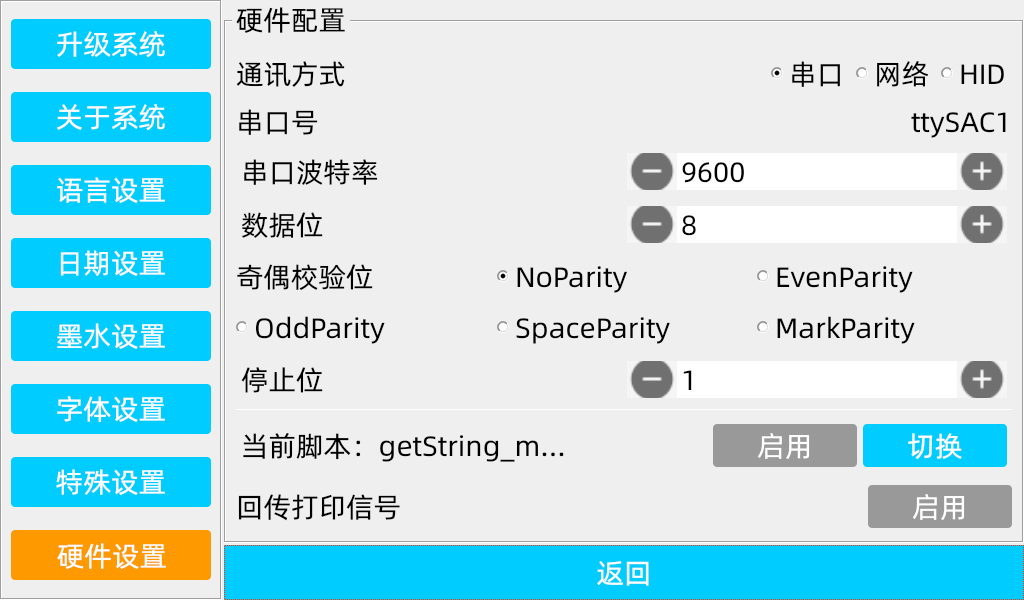
- Enable the corresponding script (e.g.,
getString_multi_json.lua); if not present, install from USB and enable
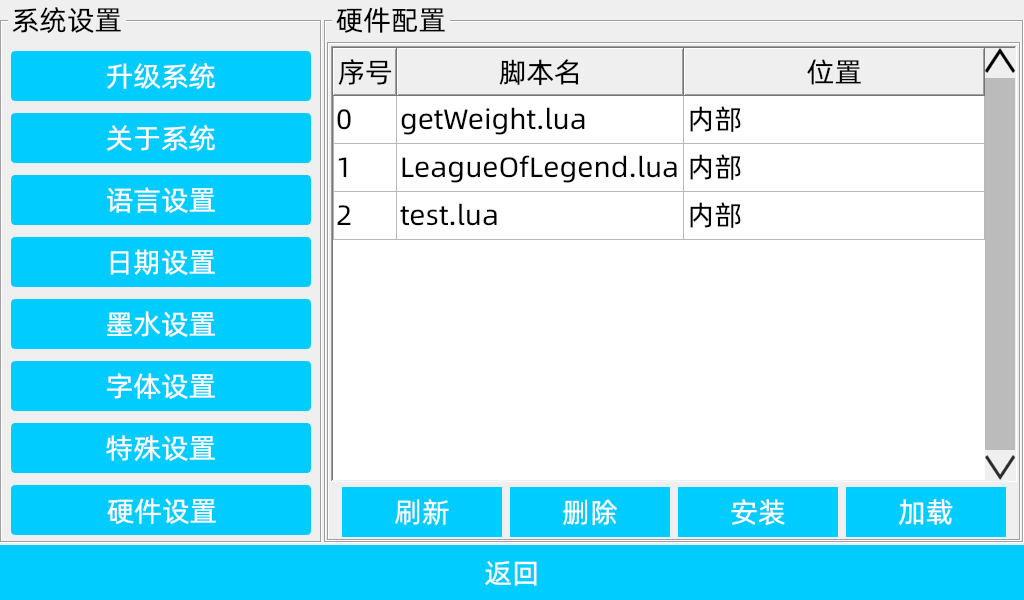
- Download software supporting serial transfer (e.g.,
Bittlyon Linux). Set serial protocol, PC port, baud rate; then configure data bits, parity, stop bits

- Send
{regNum=67,content="xxx"}\r\ntext; the mainboard switches to the target template
Network Method
- Go to Settings → Hardware Settings, select Network as the communication method, and configure parameters:
- With a DHCP-enabled router: use Auto Obtain IP
- Direct connection: configure IP manually (restart required)
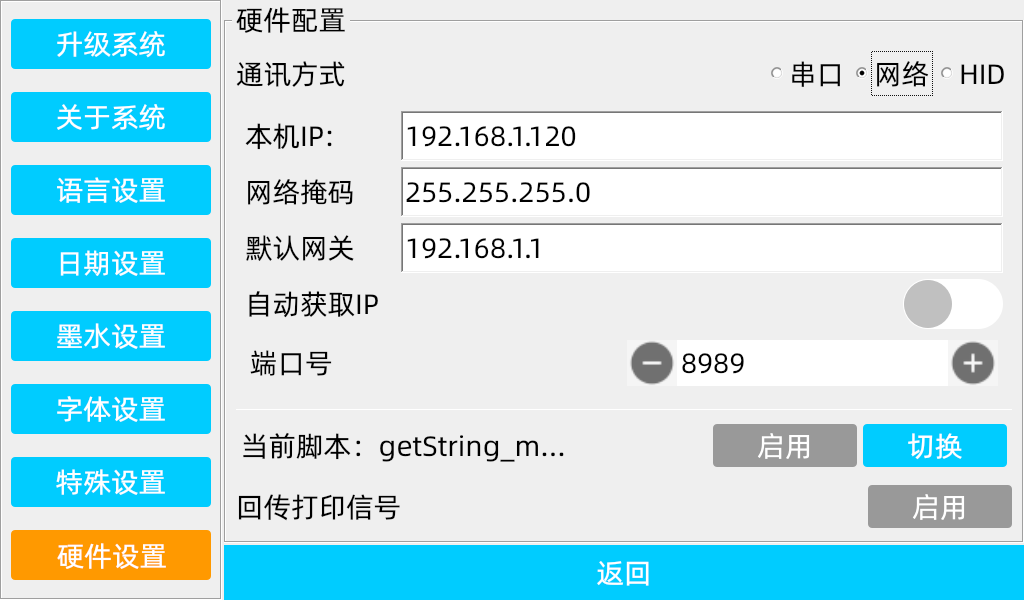
- Enable the corresponding script
- Download software supporting network transfer; set network protocol, board IP address, and port

- Send
{regNum=67,content="xxx"}\r\ntext; the mainboard switches to the target template
Protocol Formats
Signal switching uses the same protocol formats as the Communication Protocol:
- Simple format (getString_reg.lua)
- Single JSON (getString_json.lua)
- Multiple JSON (getString_multi_json.lua) — Recommended
- Special character format (getOpMsg.lua)
Note:
checkConnectivity.luais for connectivity testing only — it does not support signal switching.